
How to use Art Radar
Find an event, check the details and plan your visit. You do not need an account to browse Art Radar.
Open the calendar →Browse a month, week or single day. Use the arrows to change the period; on desktop, Today returns to the current date. Each event card highlights the group name with the event title below.
Start with a category and region. On your first visit, both are selected alphabetically unless you already have a saved choice. Available cities depend on the region. Site settings determine whether you can choose one city or multiple cities or all cities.
All Groups expands the group list to all groups in the selected category, not just local ones. You can select multiple groups. When you start filtering by groups, location switches to All to include guest performances. You can then narrow the region and cities again.
When the venue filter is available, you can select multiple venues. Region and cities narrow the venue list; choosing a venue does not narrow the city list. Changing location clears the previous venue selection.
Clear removes additional filters and keeps the current category and region. If location is set to All, it restores the last selected region. Category and region do not increase the additional filter count. Use your browser's Back button to return from event details to the previous period and filters. Remembering preferences requires available browser storage.
Open an event to see its date, time, venue, groups and description. When supplied by the organiser, ticket prices, booking links and social event links are also available. Tickets are purchased on the seller’s website. Past calendar events have a paler colour. The ticket button is disabled only after the end time, so it remains available during an ongoing festival.
Below the tickets on the event page, choose Google Calendar or download an ICS file for Apple and other apps. Confirm the addition and set a reminder. The title includes the group and event names; a Facebook event link is included in the description when available. Inclusion of the full description depends on site settings. This is a one-time addition: subsequent schedule changes do not automatically update your saved copy.
Select a group or venue name on an event page to see its profile, available links and upcoming events. Venue addresses link to Google Maps.
In portrait mode, the calendar displays a list of days and positions it at today when today is in the selected period. An empty today has a message. Period navigation and Filters stay in a sticky toolbar. Tapping outside open filters closes them first — it does not immediately open an event underneath. The site menu uses the three-line icon.
Use PL / EN to change the application language. Content provided by organisers may remain in Polish if an English version has not been added.
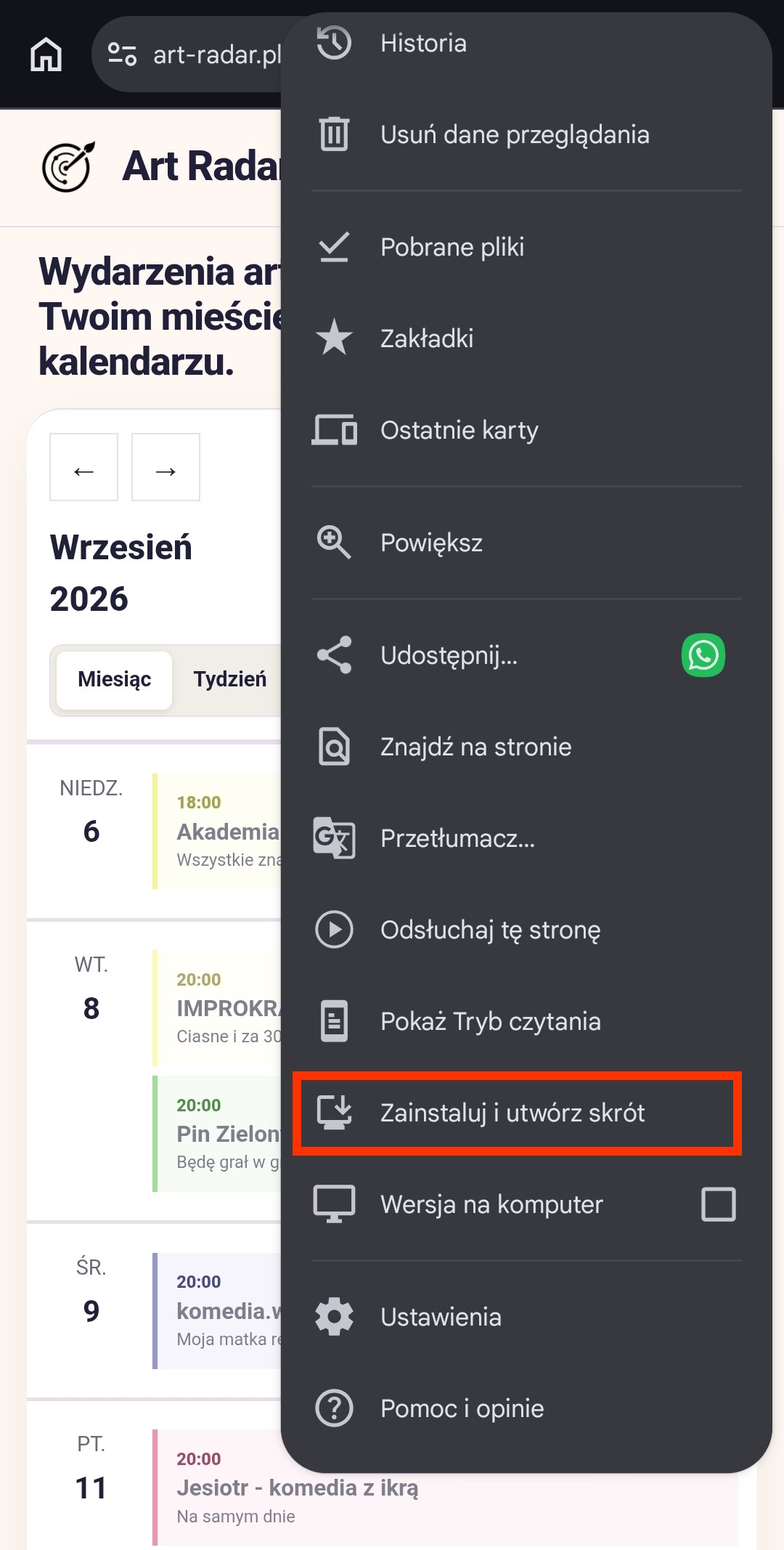
Add the website to your home screen to open it with a single tap. Depending on your phone and browser, this creates a shortcut or a web app. An internet connection is needed to load current events.
Android - Chrome
- Open the art-radar.pl home page in Chrome.
- Tap the ⋮ menu next to the address bar.
- Choose Install and create shortcut or Add to Home screen.
- Choose the available installation or shortcut option and confirm.
iPhone / iPad - Safari
- Open the art-radar.pl home page in Safari.
- Open Share (the square with an upward arrow).
- Choose Add to Home Screen. If it is missing, check Edit Actions.
- If Open as Web App is available, you can enable it. Tap Add to confirm.
Official instructions: Google Chrome ↗ · Apple Safari ↗
Browsing does not require an account. If you manage a group and want to add its events, contact us from the group’s official email address. Once your account is linked to the group, you can use the management panel.
Contact us →